
Before publishing, organizers can control which information appears online, how players register, and which options are available for spectators and participants. Proper publish settings ensure accurate online information and smooth registration.
General tab
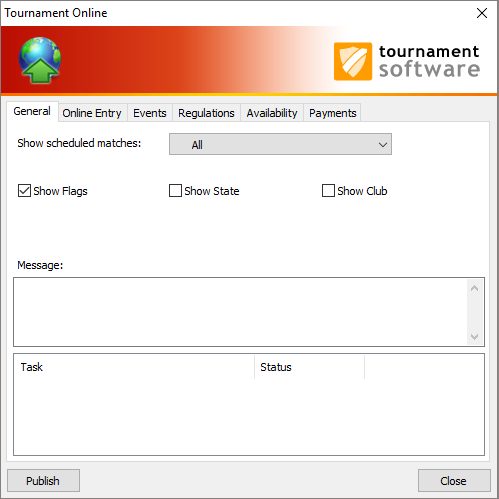
- Use the field Show scheduled matches to select which scheduled matches you want to show on the internet.
- If you run an international tournament you can check the option Show flags. The national flag of the player will be displayed online.
- If you also want to display the state and club you can tick Show State and Show Club.
- To inform players and spectators with the latest news, you can use the Message window. The message will be published online on the first tab of the tournament.
Online Entry tab
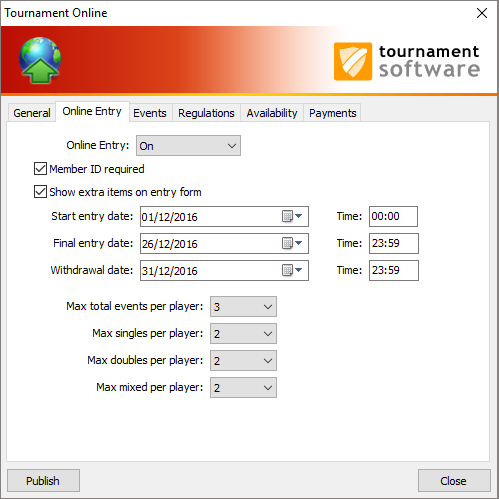
If you want to enable online entry you can tick Enable online entry.- Enter a Final Entry Date after the current date.
- If this date is on or before the current date online entry is disabled on the website.
- If you tick Member ID required, players cannot enter online without specifying their member ID.
- Check Show extra items on entry form to make the extra items visible for players entering online. You can set the extra items on the tournament properties screen. This could be a banquet or a T-shirt.
- In the field Max total events per player you can set up the maximum number of events a player is allowed to enter. You can also do this for single, double and mixed events.
Events tab
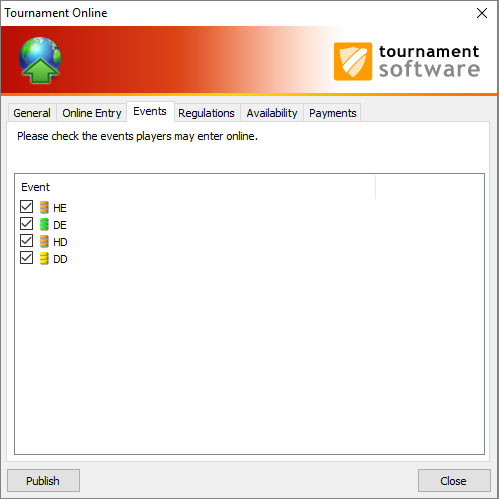
- On the Events tab you can select which events can be entered online.
- Default all events are ticked.
- If a certain event is full you can untick the box and publish your tournament again.
Regulations tab

- If you wish to publish the rules of your tournament you can enter or copy/paste them on the Regulations tab.
- You can do this from a word processor or load them by clicking the button Load text.
- If a player wants to register he or she has to accept the rules first.
Availability tab
-
-
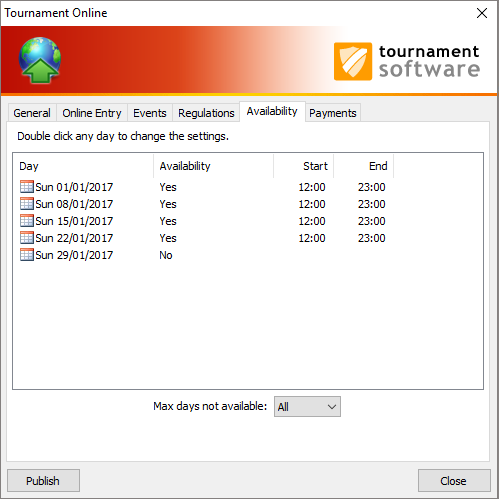
On the Availability tab you can set the days the players are allowed to enter their availability online.
-
At Max days not available you can set how many days a player can be unavailable.
Online Payments tab
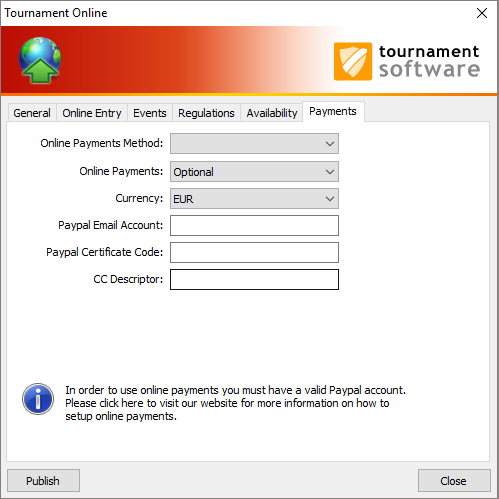
- On the Online Payments tab you can select if you want to activate online payment with paypal for your online entries.