
Steps
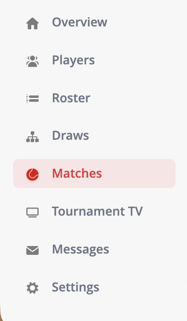
- Go to Matches in the left-hand menu
- If needed, select the correct match day to display the matches
- Find the match you want to update
- Open the dropdown menu next to the match
- Go to Players
- Select the player you want to mark as present
What happens after marking a player as present?
- The selected player is marked as present
- A green indicator appears next to the player
- The changes are saved automatically
When should I use this?
Use this option when:
- Players arrive at different times
- You only want to confirm attendance for specific players
- You are checking in players individually
Tip
If all players are present, you can use the All Players option to mark everyone at once.
Troubleshooting
If you’re unable to mark a player as present:
- Make sure you are logged in
- Check if the correct match day is selected
- Refresh the page if matches are not visible
- Ensure players and matches have been added to the tournament